Back to Maintenance Manager for Manufacturing Main Menu
Sign In Using Google, LinkedIn, or a Passkey
Users can sign in using Google, LinkedIn, or a Passkey.
Sign in With Google
-
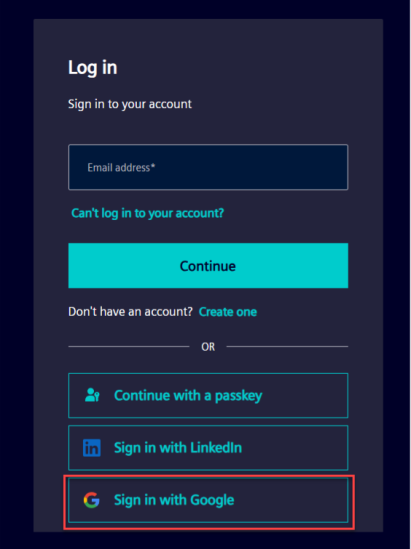
Click Sign in with Google.
-
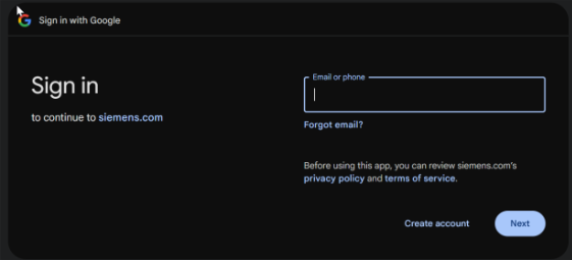
On the Google sign-in page, enter email ID or phone number and click Next.
-
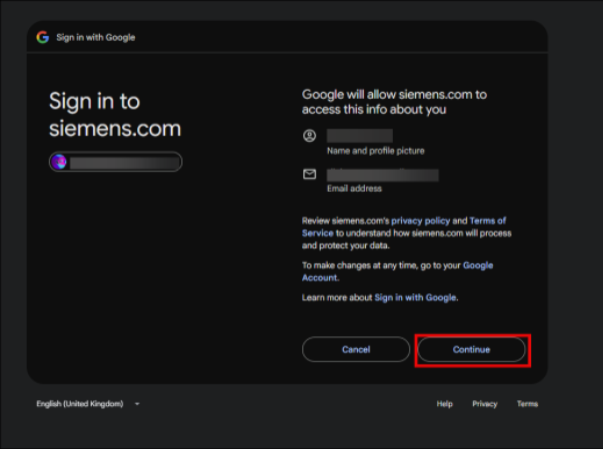
It will then ask you for permission to access your information, clickContinue.
-
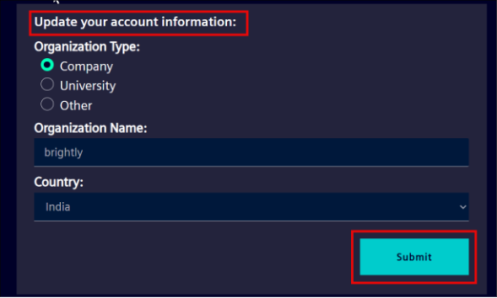
Update account information, if prompted.
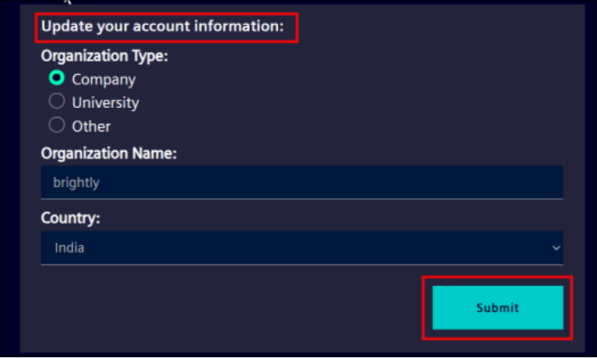
-
Review and accept the Terms and Conditions,after which the system will redirect to the Maintenance Manager for Manufacturing home page.
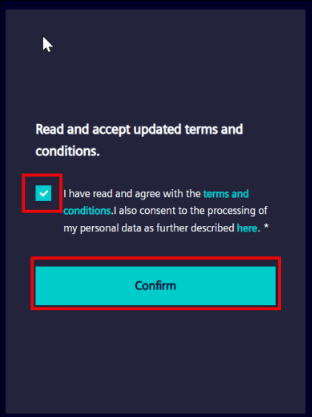
NOTE It only works if you are logged in on Gmail with the same id in the same session.
Sign in with LinkedIn
-
Click Sign in with LinkedIn.
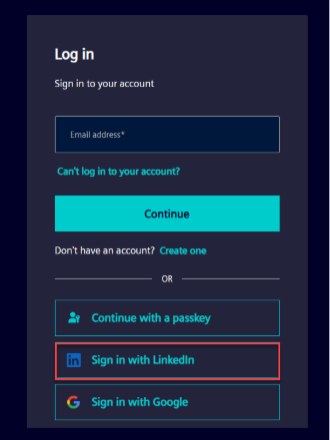
-
On the LinkedIn sign-in page, enter LinkedIn account credentials and click Sign in.
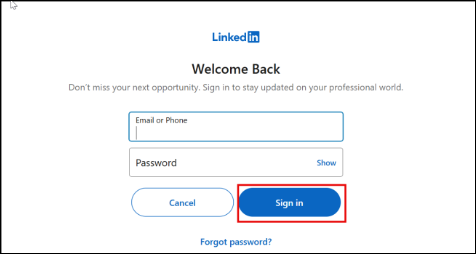
-
Update account information, if prompted.
-
Review and accept the Terms and Conditions,after which the system will redirect to the Maintenance Manager for Manufacturing home page.
Sign in With Passkey
-
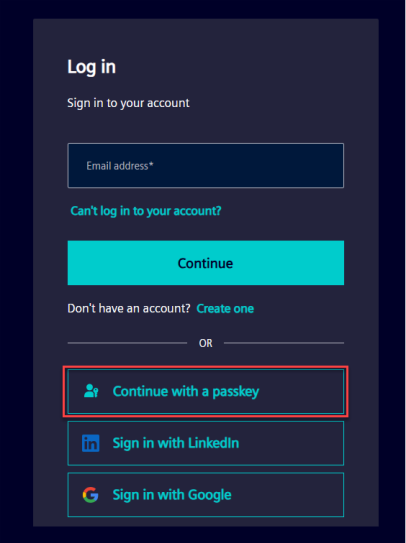
Click Continue with Passkey.
-
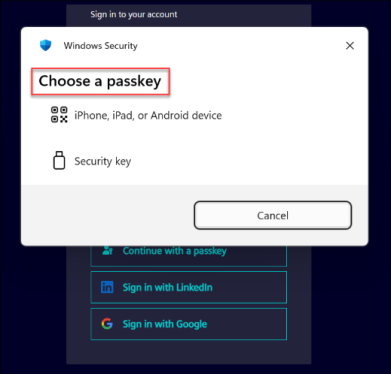
In the Choose a Passkey dialog box, select the preferred passkey option.
-
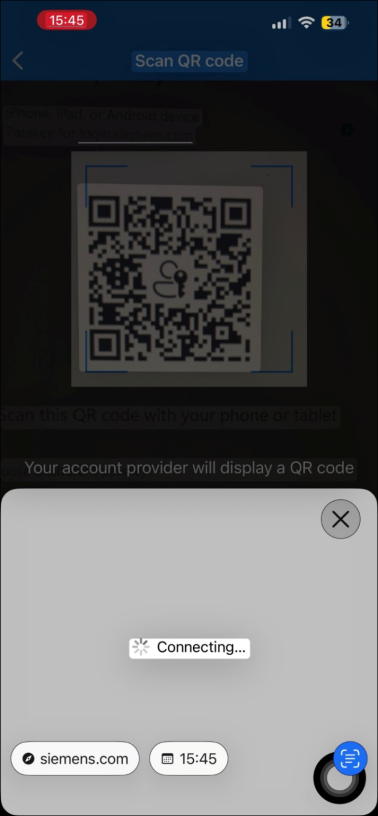
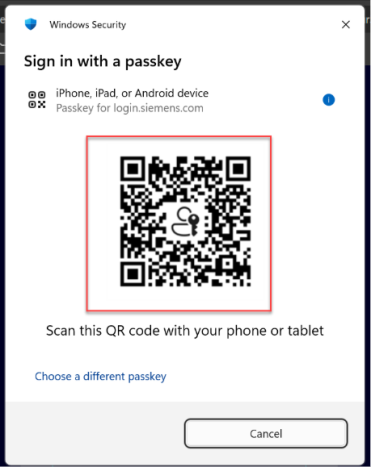
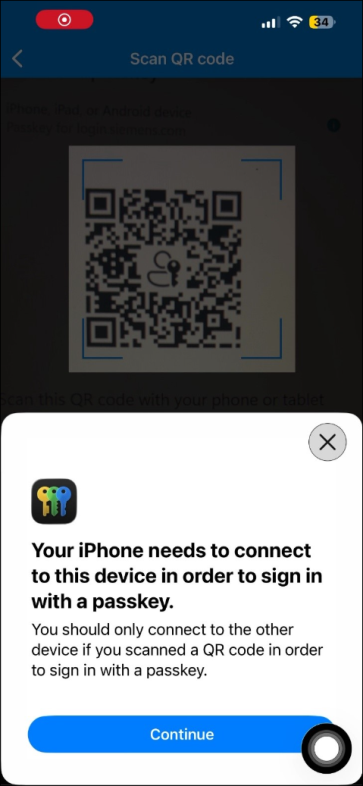
If iPhone, iPad, or Android device is selected, a QR code displays on the screen.
-
Scan the displayed QR code using the selected device.
-
If prompted, connect the mobile device to sign in using a passkey, and then select Continue.